
Downloading your Digital Card directly from
CredsVault's portal
Note: this process is most easily performed on the device you want to store the credential on. E.g. if you want to store it on your iPhone, log into CredsVault from your iPhone.
If you do not have access to your email on your phone
You can also access your credential via any web browser through the CredsVault portal.
- Click this link
- Click on the Sign up for a personal account button

- Enter the basic information requested and click on the button labelled Register.

- An email will be sent to the email address you have used to sign up with

- Go to your nominated email account and find the latest email from CredsVault. Click on the button labelled Confirm your email

- Click on the Back to home button to return to the CredsVault login screen

- Sign-in to your account using the credentials you have just entered.

Find your current Digital Card and add it to your mobile wallet
- Once logged into CredsVault you will be presented with all the digital credentials you have been issued, including any expired or revoked credentials.
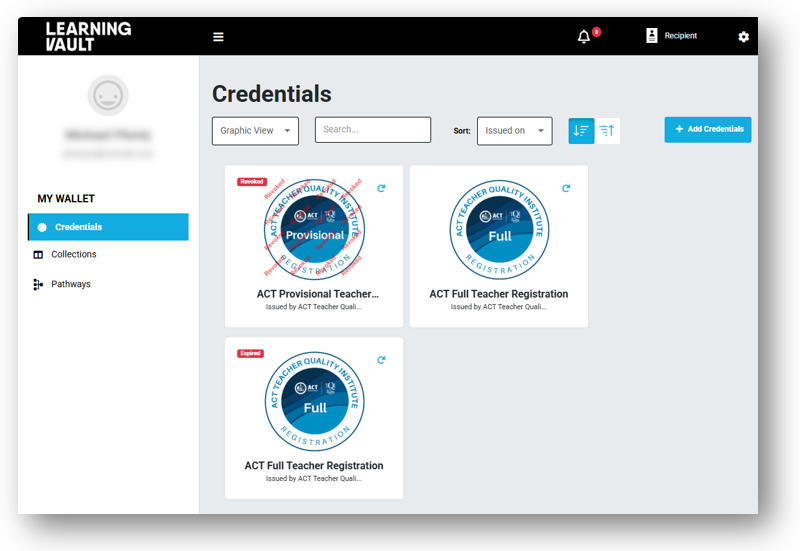
- To download your current digital registration card to your Apple or Google wallet you must first view the full credential. Click on the little circular arrow in to top-right-hand corner of the credential to flip it.

- Once you have flipped the credential card, click on the ‘View’ button.

You should now see the full credential details displayed. You will also note there are several download options available to you. We are predominantly interested in the ‘Add to Apple Wallet’ and ‘Add to Google Wallet’ buttons. Most of the others do not apply to TQI’s use of this service. - Click on the button which matches your phone’s operating system
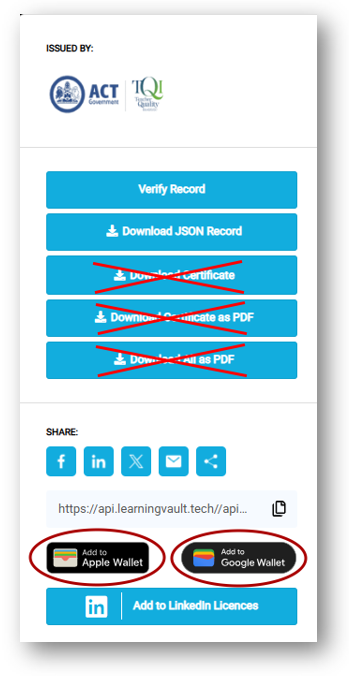
- Your phone should identify the attempt to add the digital card to your device wallet. Follow the instructions supplied on your phone.
Other user cases
Sharing your digital card.
Aside from allowing someone to scan the QR code associated with your digital card from your phone, you can also share a link directly from the screen above.
Click on the option to copy the link to your digital card. This will allow you to paste the link in an email or any other way you might choose to share your credential.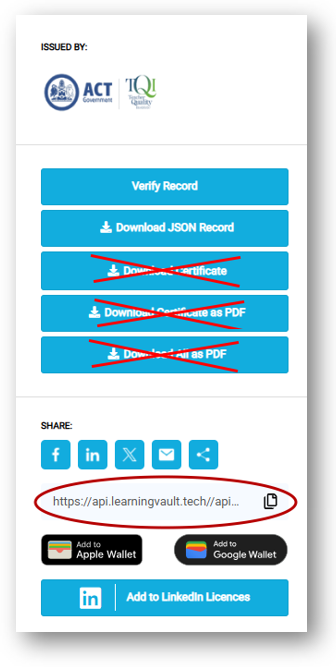
Sharing directly to social media sites such as LinkedIn or Facebook might also be desired, perhaps not for standard registration credentials, but certainly for Certification credentials such as the Highly Accomplished Teacher or Lead Teacher badges.